

The QuickBooks “File Exists Warning Message” error appears when the software gets stuck because the file is either in use or locked by another application. This is an error that does not allow the user to open the company file. Some of the prime factors, leading to the reason behind the trigger of the error are permission issues, outdated software, network connection failure, incorrect folder permissions, interference from the User Account Control (UAC), and outdated QuickBooks versions.
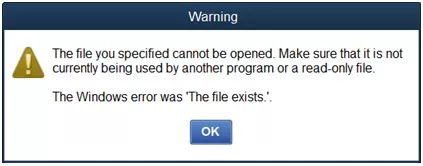
An alert message is received by the user as, The File Exists error while opening a component in QuickBooks Desktop (QBDT). To resolve this error, ensure QuickBooks is up to date and you have a stable Internet connection. So, these are the 12 potential resolutions that will help you in troubleshooting or resolving QuickBooks Desktop ‘The File Exists Warning Message’ Error.
This error can get in the way of your work, but you can fix it quickly if you follow the right steps.
What Causes the ‘The File Exists’ Error in QuickBooks?
- Outdated QuickBooks Desktop version
- Insufficient administrative rights on your Windows user account
- File or folder permission issues
- Conflicting file names or files already open in another program
- Network or connectivity problems
Step-by-Step Solutions
Solution 1: Run QuickBooks as Administrator
Running QuickBooks with administrator privileges can resolve permission-related issues.
- Close QuickBooks.
- Open the Windows Start menu.
- Type “QuickBooks” in the search bar.
- Right-click your QuickBooks version and select Run as administrator.
- Attempt the task that caused the error.
Solution 2:Update QuickBooks Desktop
Keeping QuickBooks updated fixes bugs and compatibility issues.
- Open QuickBooks.
- Go to the Help menu.
- Select Update QuickBooks Desktop.
- Click the Update Now tab.
- Check Reset Update, then click Get Updates.
- Restart QuickBooks and install updates if prompted.
Solution 3:Change Windows File Permissions
Ensure your user account has full control over the QuickBooks program folder.
- Open File Explorer.
- Navigate to:
- 32-bit:
C:\Program Files\Intuit\QuickBooks (year) - 64-bit:
C:\Program Files (x86)\Intuit\QuickBooks (year)
- 32-bit:
- Right-click the QBW32.exe file, select Properties.
- Go to the Security tab, click Edit.
- Click Add, type “Everyone”, click OK.
- Select Full Control, click Apply.
- Repeat for your user account.
Solution :4 Turn Off User Account Control (UAC) Temporarily
UAC can sometimes block QuickBooks actions.
- Open Control Panel.
- Search for “UAC” and select Change User Account Control settings.
- Move the slider to Never notify.
- Click OK and restart your computer.
Solution :5 Check for File Name Conflicts
If saving or exporting, ensure the file name isn’t already in use in the destination folder. Rename the file or choose a different location if needed.
Solution 6: Use a Wired Internet Connection
If you’re updating payroll or QuickBooks, a stable wired connection is less prone to interruptions.
Precautions to Avoid ‘The File Exists’ Error
- Keep QuickBooks updated to the latest version.
- Use unique, descriptive file names to prevent conflicts.
- Close all QuickBooks windows and forms before updating or running payroll.
- Avoid opening company files over unstable networks.
- Regularly back up your company file before making major changes.
- Follow proper file handling procedures and avoid illegal characters in file names.
Frequently Asked Questions (FAQs)
Q1: What does the ‘The File Exists’ error mean in QuickBooks?
A: It means QuickBooks is trying to access or save a file, but a file with the same name already exists, or there are permission issues preventing access.
Q2: Can I ignore the warning and continue working?
A: Ignoring the warning may prevent you from completing payroll, tax payments, or saving important forms. It’s best to resolve the issue promptly.
Q3: Will updating QuickBooks delete my data?
A: No, updating QuickBooks will not affect your company data. However, always back up your company file before performing updates.
Q4: What if running as administrator doesn’t fix the issue?
A: Proceed to check file permissions, update QuickBooks, and review UAC settings. If the error persists, consult a QuickBooks professional.
Q5: Is it safe to turn off User Account Control (UAC)?
A: Disabling UAC can expose your system to security risks. Only turn it off temporarily for troubleshooting, and turn it back on afterward.
By following these steps and precautions, you can effectively resolve and prevent the ‘The File Exists’ error in QuickBooks Desktop, ensuring smoother financial management for your business.
